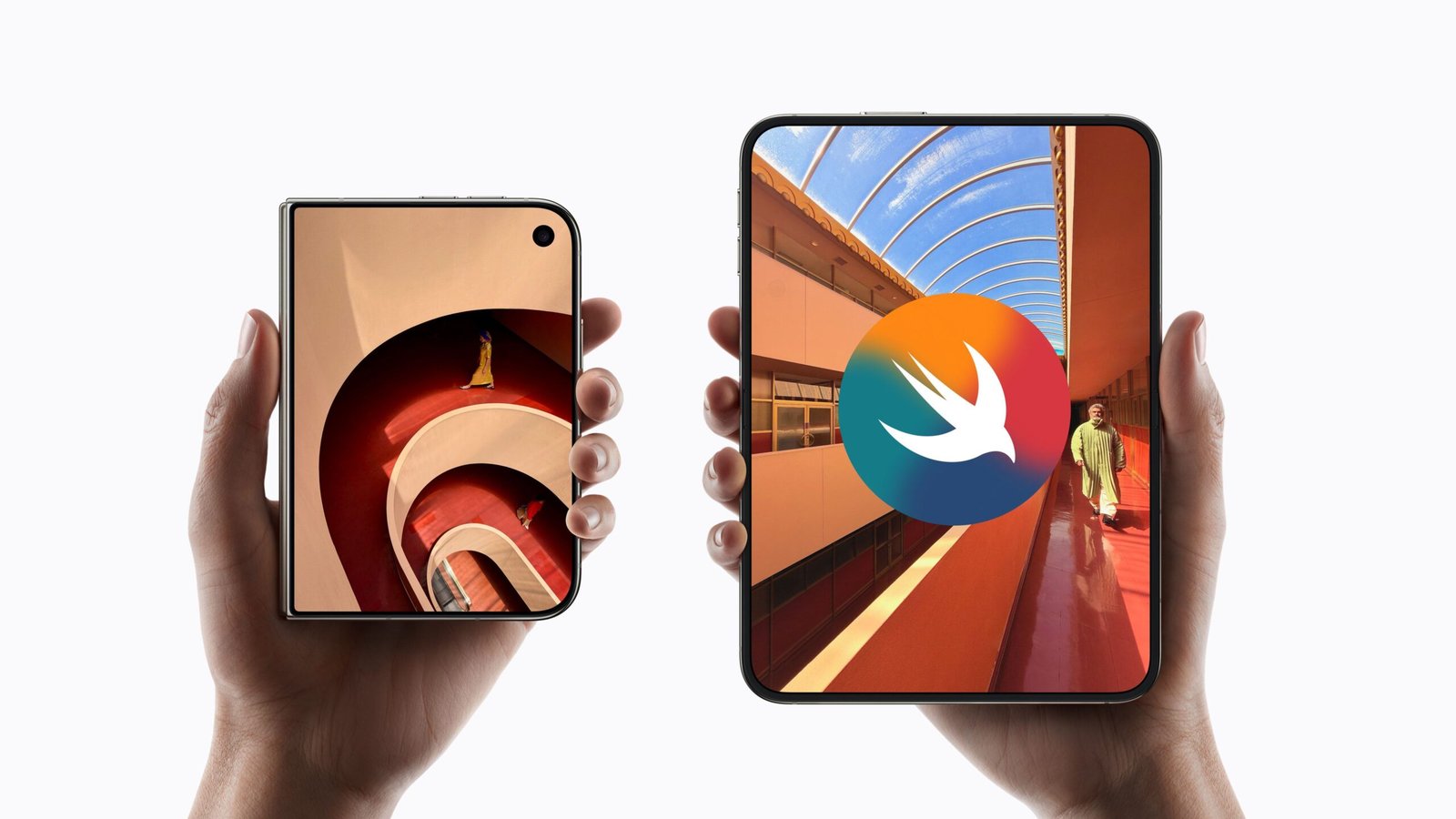
Apple has officially entered the foldable market with the iPhone Duo, bringing the biggest shift to iOS interface design since the introduction of the iPhone X. Set to hit shelves in late October 2026, the Duo demands a paradigm shift from developers. You are no longer designing for a static rectangle; you are building for a fluid, shape-shifting canvas powered by iOS 27.
Whether a user is quickly checking a notification on the 5.4-inch outer display or unfolding the device to its full 7.6-inch iPad mini-like glory, your app needs to transition flawlessly. Here is how to prepare your iOS applications for Apple’s foldable future using native SwiftUI.
1. Stop Hardcoding, Start Resizing
The most critical rule of iPhone Duo development: build your app to resize. With the introduction of Split View multitasking on the inner display, users can run two apps side-by-side or pin videos above your interface.
- Rely on Size Classes: Your app can appear at many different sizes depending on the device’s posture and how much screen real estate the user grants it.
- Safe Areas are Non-Negotiable: Never assume where the edges of the screen are. Always use layout margins and safe area insets to position your controls to avoid hardware clipping.
- Arrangement Views: Rely heavily on native SwiftUI containers. An
HStackorVStackwill natively translate into a split arrangement, while aZStackeffortlessly handles overlays when transitioning between screens.
2. Design for Layout Asymmetry
Because the 5.4-inch outer display is wider and shorter than traditional iPhones, iOS 27 handles navigation controls differently.
The system automatically pushes toolbars, tab bars, and navigation controls to the side of the screen to preserve vertical space for your content. When unfolded into landscape mode on the inner screen, these controls remain on the side to maintain a continuous, predictable experience. If you are using standard SwiftUI components, you will inherit this asymmetrical layout automatically—but custom navigation bars will require manual updates to ensure they don’t cover critical content.
3. Adapt to “Poses” and the Crease
The iPhone Duo isn’t just open or closed; its book-style hinge allows for various hardware “poses”.
- Keyboard & Stand Modes: A user might fold the device halfway, resting the bottom half on a desk to use as a keyboard while the top half acts as a monitor. Ensure your app’s UI doesn’t break when the aspect ratio shifts dramatically in this compact setup.
- Mind the Fold: Apple uses a nano-texture finish and complex hinge to minimize the visible crease. However, you should still use the new reserved region APIs to ensure important interactive elements (like submit buttons or central gaming controls) are kept clear of the physical center if the system doesn’t move them automatically.
4. Unify the State
Users expect to start an action on the outer screen and finish it on the inner screen. If someone is drafting an email on the 5.4-inch cover and unfolds the device, the app must immediately expand to show the inbox list on the left and the active draft on the right. Ensure your application state is completely decoupled from your view layer so data persists seamlessly during these hardware transitions.

Leave a Reply